
Microsoft has announced HTML pages for SharePoint: public preview started in early October 2026, and general availability rolls out worldwide from mid-November to late December 2026 (MC1479517). That means authors can generate a page with Copilot or upload their own HTML, which then sits in the Site Pages library next to normal pages.
The SharePoint community has already started debating whether this is a new way to build intranets or a shortcut that creates problems later. I think it's neither. It is one more tool, and like any tool, it fits some jobs and not others.
What is the difference between a SharePoint page and an HTML page in SharePoint?
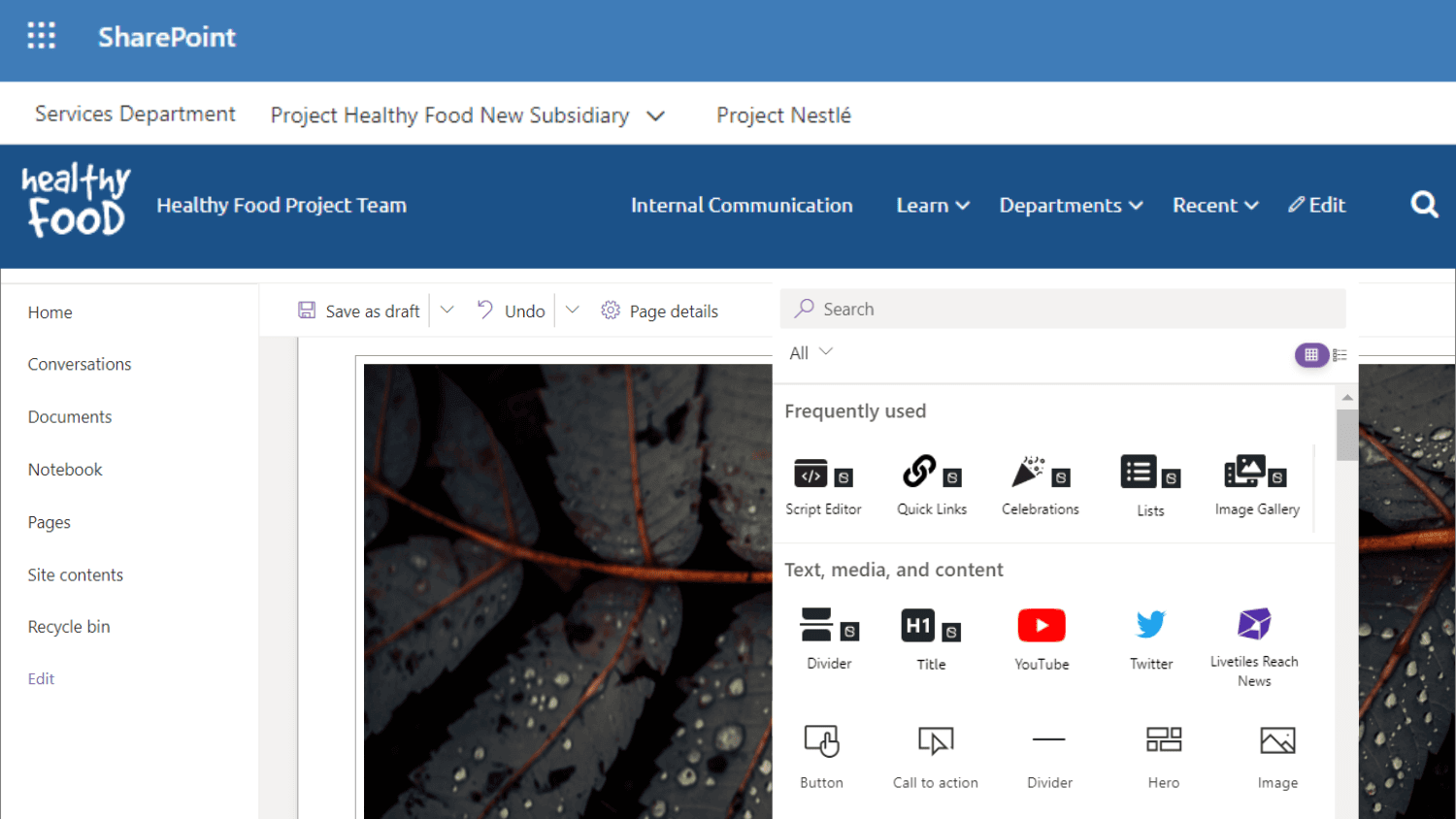
One of the biggest sources of confusion between SharePoint and HTML pages starts with misconceptions about which one is which. So, first, I think the most important thing is to understand that a standard SharePoint page is a modern page built from web parts. Microsoft maintains the layout, theming, mobile behavior, and accessibility of those building blocks, and the page works with the rest of the platform: templates, news, co-authoring, comments, scheduling, and search metadata.
An HTML page, by contrast, is a different object. It is a single HTML document, either generated by Copilot or uploaded by you, stored in the Site Pages library.
Based on Microsoft's documentation and a technical teardown of how the pages render, the key distinction points include:
| Capabilities | Standard (modern) page | HTML page |
|---|---|---|
| Built from | Web parts maintained by Microsoft | One self-contained HTML file, up to 10 MB |
| How it renders | Native SharePoint page | Sandboxed iframe with a Content Security Policy |
| Layout control | Section and web part grid | Full control of HTML, CSS and inline JavaScript |
| Scripts and libraries | SPFx web parts, approved extensions | Inline JavaScript only; Microsoft-managed Chart.js, Mermaid, React, Fluent UI and Babylon; no other CDN scripts, no outbound calls |
| Site theme | Follows the site theme | A snapshot taken at creation; later theme changes do not reach the page |
| Co-authoring, comments, scheduling, templates, news promotion | Supported | Not supported |
| Editing | Full page editor | Text and image edits in place; Copilot for bigger changes |
| Mobile | View and edit | View only; editing in the Teams mobile app is not supported |
| Tenant-level off switch | n/a | Not available; site owners can turn off Allow HTML files per Site Pages library |

Two details matter for deciding which one to use:
- Copilot is only needed to create or edit with the chat pane; uploading and viewing do not require a license.
- Because the page lives in an iframe, it behaves more like embedded content than like part of the page.
Are HTML pages replacing standard SharePoint pages?
Microsoft added HTML pages as a second page format and kept standard pages as the default. Both sit in the same Site Pages library under the same permissions, and the rollout retires nothing. HTML pages give authors another way to present content, and that is the whole of the change.
The supported feature list says the same thing in plainer terms. An HTML page cannot be promoted to news, scheduled, saved as a template, co-authored or commented on, and it carries no translation workflow. A format missing all of that was never built to take over from the one that has it.
The debate in the community splits along the same line. Practitioners who are positive about HTML pages tend to limit them to read-only content and pair them with standard pages. Those who are skeptical ask whether the trend is being followed without anyone checking whether it fits the use case, and some report that their customers are not asking for HTML pages at all.
The decision is narrower than replacement. For any given page, one format fits better than the other, and the cost of choosing wrong shows up after launch rather than at it.
Pros and cons of HTML pages: day one versus month six
HTML pages win on design freedom and speed, but lose on everything that must last. That is the consistent view across SharePoint practitioners, community discussion on LinkedIn, and published technical reviews. The table sets each advantage next to its cost.
| Theme | Pro | Con |
|---|---|---|
| Design | Full control of layout and look, well beyond what web parts allow, especially on read-only pages | Pages drift from the site: the theme is a snapshot, the brand font can fall back to Segoe UI, and generated layouts vary between similar prompts |
| Speed | Copilot drafts a page from a prompt and a brief, or you upload HTML you already have | Quality depends on the prompt, and the result still needs a design and content review |
| Data | Live list data can be shown, read with the viewer's own permissions | No outbound API calls and no third-party scripts, so anything more complex needs SPFx |
| Accessibility | You control the markup | You also carry the responsibility: structure, alt text, contrast and keyboard use are not checked for you, which matters most in public sector and regulated work |
| Language | Fine for a single language | No translation workflow, so every language version is a separate page you maintain |
| Maintenance | Quick to publish a first version | Harder to correct and update later, and editing is limited to text and images unless you use Copilot |
| Platform fit | Sits in Site Pages with the same permissions, retention and analytics model | Existing extensions and customizers may not work, and some practitioners ask why an HTML page should live in SharePoint at all rather than in a static web app |
| Mobile | Viewing works on phones | View only, and a page that breaks on mobile is the worst outcome |
| Collaboration | Simple for a single owner | No co-authoring, comments, scheduling, templates or news promotion |
| Governance | Existing permissions still apply and publishing grants no extra access | No tenant-wide off switch, and the sandbox protects SharePoint but does not review what is inside the page |
In summary, the pros mostly describe the first day of a page's life. The cons describe what happens in month six, when someone has to update, translate, audit, or take it over.
Practitioners who are positive about HTML pages tend to limit them to read-only content and to pair them with standard pages. But those skeptical that HTML pages should replace standard pages ask the underlying question: Is this trend being followed without asking whether it fits the use case? Some practitioners report that customers aren't even asking for HTML pages, while others say standard pages already do the job well.
When should you use an HTML page instead of a standard page?
Start from what the page has to do over time, not from how it should look on day one. If a page needs any of the first column below, use a standard page. If it needs only the second, an HTML page is a reasonable choice.

| Use a standard SharePoint page when: | Use an HTML page when: |
|---|---|
| Several people edit it, or the owner will change | One person owns it and it rarely changes |
| It must be translated or published in several languages | One language, one audience |
| It is news, or needs scheduling, comments, reactions or approvals | It is a standalone page that needs none of these |
| It must follow the site theme and brand as the theme evolves | A one-off look is acceptable, or the design is deliberately distinct |
| It is part of navigation, templates or a repeatable pattern | It is a one-off |
| Accessibility must be demonstrable, for example in public sector or regulated work | You can test accessibility yourself and accept the responsibility |
| It uses extensions, third-party web parts or search metadata | It stands alone and needs only inline script |
| People will use it daily on a phone, including editing | Viewing on mobile is enough |
What to use for home pages, news, policies and dashboards
| Page type | Recommendation | Why |
|---|---|---|
| Home page and main navigation | Standard page | Most visited, most edited, must follow the theme |
| News and announcements | Standard page | News promotion and scheduling are not supported on HTML pages |
| Policies, HR and compliance content | Standard page | Needs versioning, ownership and accessibility you can show |
| Department and team sites | Standard page | Co-authoring and templates |
| Event or campaign landing page | HTML page | Short-lived, design-led, one owner |
| Project overview or one-off briefing | HTML page | Quick to produce, can expire |
| Internal dashboard on list data | HTML page | The live-data feature fits, within the sandbox limits |
| Interactive visual or prototype | HTML page | Self-contained, Chart.js or Mermaid built in |
| Page that calls APIs or external services | Neither: build an SPFx solution | The HTML sandbox blocks outbound calls |
| Customer-facing site | Neither: use a proper web platform | SharePoint is an intranet platform, and the HTML sandbox is not a website host |
Carlos Silva's guide frames the same choice as three stages.
- Experiment: low-cost tests that can expire.
- Reliance: once a team depends on a page, it needs an owner, a review and a lifecycle.
- Business-critical: when a page needs APIs or application logic, it has outgrown the sandbox and should become an SPFx solution.
What to settle before your first HTML page goes live
The sandbox protects SharePoint, but it does not review what people put inside it. These are the points to settle before the first page goes live.
- Ownership. Name an owner for every HTML page and decide what happens when that person leaves. A generated page is organizational content, not disposable output.
- Accessibility. Check heading structure, alt text, contrast and keyboard use before publishing. Nothing in the platform does it for you.
- Branding. The page carries a snapshot of the theme and falls back to Segoe UI when the brand font is blocked. Plan a design review, and expect to rework the page if the site theme changes.
- Language. There is no built-in translation workflow. If you publish in more than one language, you maintain each version yourself.
- Feedback and review. There are no comments or co-authoring, so collect review feedback somewhere else.
- Permissions. Publishing does not widen access. Check that the intended audience can already open the page.
- Control. There is no tenant-wide switch. Site owners decide per site with Allow HTML files in the Site Pages library, and add trusted domains under HTML Field Security.
- Lifecycle. Give experimental pages an end date. A page that quietly becomes something people rely on is where the risk grows.
My recommendation: default to standard SharePoint pages
Default to standard SharePoint pages. They are the right choice for anything shared, translated, branded, audited or maintained over time. Reach for an HTML page when the content is short-lived, owned by one person and needs a design that web parts cannot give you. When a page needs to call APIs or behave like an application, build it with SPFx instead.
Then put the control where it matters. Decide per site who may create HTML pages, who reviews them, who owns them and when they expire, before the pages multiply.
For a deeper look at the settings and the governance questions a site owner should answer, read Carlos Silva's guide: A Guide to SharePoint HTML Pages: Features, Limits, and Governance.
FAQ
Do you need a Microsoft 365 Copilot license to create or view a SharePoint HTML page?
You need a Microsoft 365 Copilot license to open the HTML page creation screen and to create or edit a page through the Copilot chat pane. You do not need one to upload HTML to the Site Pages library, edit page content directly, publish, share, or view a published page. A small group of licensed authors can generate pages that the whole organization reads.
Are SharePoint HTML pages indexed by SharePoint search?
The text on the page is indexed. A practitioner test planted a unique word on an HTML page, and SharePoint search returned the page with the surrounding sentence as the result snippet. Data pushed into the page at render time behaves differently, because it only exists in the browser, so search sees the markup and not the live values.
Can an HTML page be a SharePoint site home page?
Yes. HTML pages open as real pages inside the site, they can be reached from site navigation, and a site owner can set one as the home page. It is rarely a good idea. The home page is the most visited and most edited page on a site, and it has to follow the theme as the brand changes, which an HTML page does not do on its own.
How do you edit a SharePoint HTML page after publishing?
Text and images can be edited in place. Anything structural needs either the Copilot chat pane, which requires a license, or a manual route: edit the markup directly from the Site Pages library, or download the file, change it, and upload it again. No full page editor exists for HTML pages, which is the practical reason they are harder to maintain.
Can HTML pages be turned off for the whole tenant?
No. Microsoft states that HTML pages cannot be disallowed or restricted at the tenant level. They are enabled by default, and a site owner turns them off per site with the Allow HTML files setting under File types in the Site Pages library. Domains referenced from a page are approved separately under HTML Field Security.