





Guest access in Microsoft 365 is easy to enable and surprisingly hard to manage. A consultant joins a Team, a partner gets SharePoint access, a vendor reviews a document. Projects end. Guest accounts don't.
Over time, most tenants accumulate external users nobody is actively tracking — accounts with real access to real content, sitting unreviewed because there's no obvious moment when cleanup feels urgent.
Until Copilot arrives. Then it becomes urgent fast.
What is a guest user in Microsoft 365?
A guest user is someone outside your organization who has been given an identity in your Microsoft Entra ID directory and access to one or more Microsoft 365 resources. They can join Teams, access SharePoint sites, and collaborate on files, and are authenticated through their own external account.
This is different from someone who receives a sharing link. A sharing link doesn't require a guest account. It is a separate access mechanism. This article covers guest users specifically: identities in your directory that belong to people outside your organization.
How guest accounts accumulate
The issue isn't that organizations invite guests. Rather, it's that there's no natural end to a guest's access unless someone explicitly removes it.
Guests get created through multiple paths: a Team owner adds an external contact directly in Teams, a SharePoint invitation is accepted, an M365 Group is shared with an outside collaborator. Each path creates an Entra identity. None of them expire automatically.
Projects finish, freelancers move on, yet guest accounts remain. Months later, nobody remembers they're there.
The other visibility gap are shadow users (or guests on nested workspaces). A guest might exist on a SharePoint site associated with a Team without appearing as a Team member, which means standard reports miss them entirely unless you're looking at the right level.
How to identify guest access in your tenant
What Microsoft gives you natively:
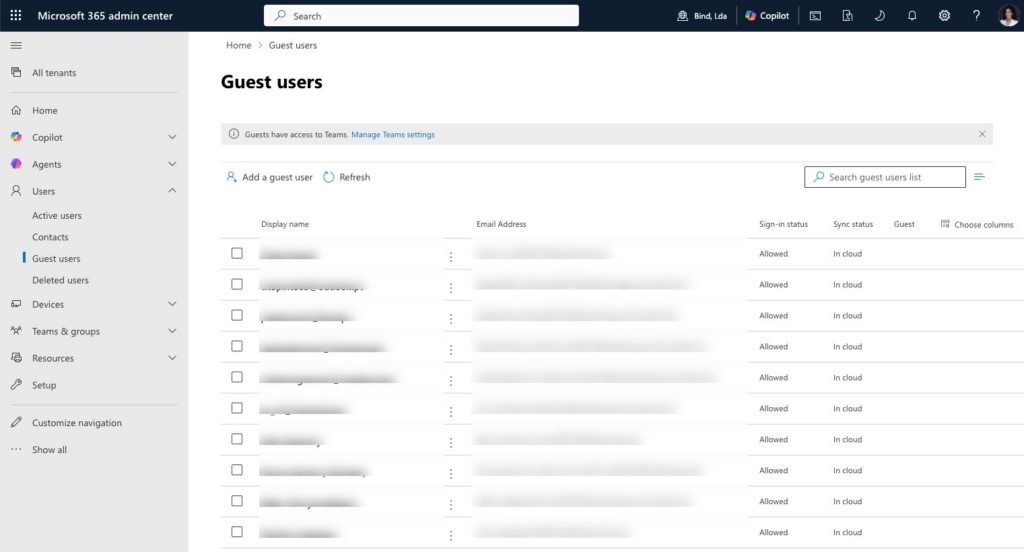
- Microsoft 365 Admin Center > Users > Guest users: a list of guest accounts in your tenant. Useful for a quick count but gives no workspace-level detail or sign-in dates details.
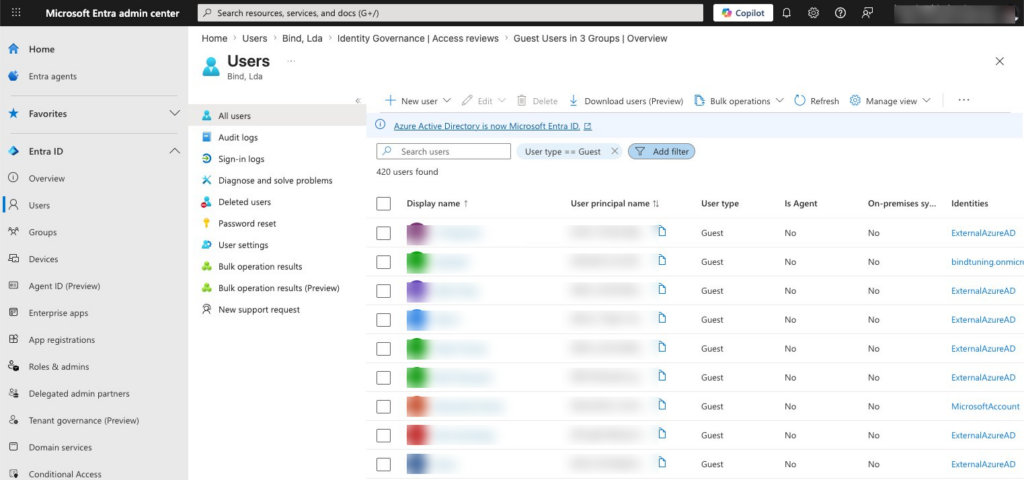
- Entra admin center > Users > All users, filtered to Guest: more detail, including last sign-in (although you cannot filter by sign-in date). Requires cross-referencing to understand what each guest can access.
- Entra ID Governance > Access Reviews: lets you configure periodic reviews by workspace owners. Effective in theory — in practice, owners often don't respond, and setup requires Entra ID Governance licensing.
Unfortunately, none of these answers the question IT actually needs answered: who are my guests, what can they access, and when did they last use it. Less all in one place.
What you should look for:
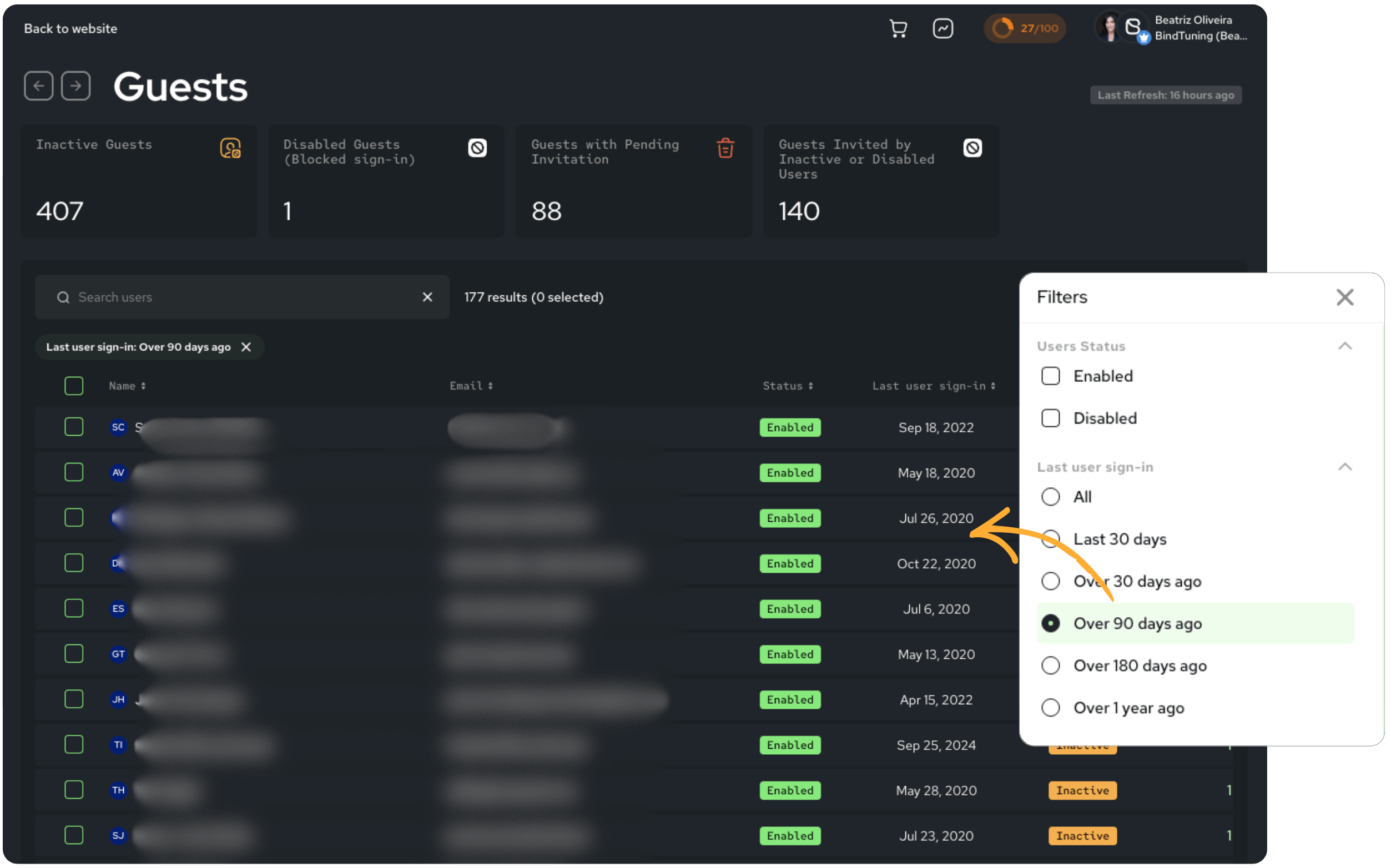
- Guests who haven't signed in for 90+ days
- Guests who are members of multiple workspaces (higher-risk accounts)
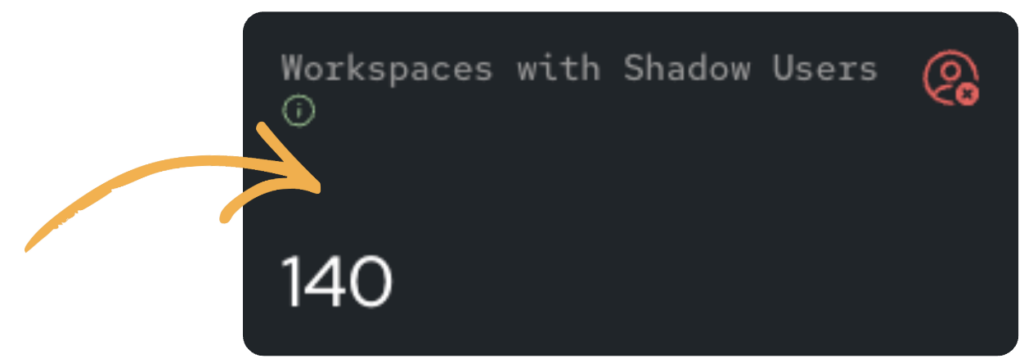
- Workspaces with shadow users that the main report doesn't surface
With Pulse365:
In BindTuning's governance platform, the Guests report and Workspaces with Guests report give you a unified view across Teams, SharePoint sites, and M365 Groups (including shadow guests that appear on a SharePoint site but not its parent Team). Automated daily scans mean the data reflects your actual tenant today, not the last manual refresh.
How to clean up stale guest access
Once you've identified the problem, there are two different actions depending on the situation:
- Remove from workspace is the right action for a finished collaboration. It revokes a guest's access to a specific workspace immediately, without deleting their Entra account or affecting any other workspaces they're legitimately part of. Precise, scoped, no side effects. You're cleaning up a relationship that's ended, not nuking an identity.
- Block user sign-in is the right action when you need to stop access immediately (due to a security incident, an HR situation, a compliance requirement). It prevents authentication entirely while keeping the account intact for audit purposes. The guest can't sign in until you restore access.
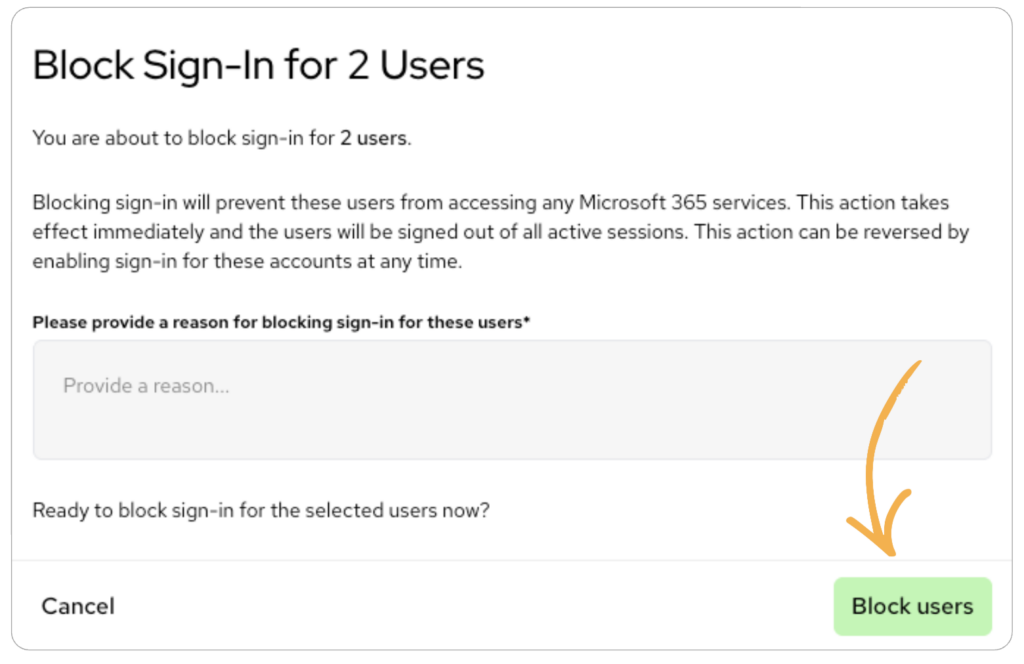
Natively, both of these require navigating to different admin centers and executing changes there. In Pulse365, both actions are available directly within the reports. No context switching required.
For bulk cleanup of clearly stale accounts, start with guests who haven't signed in for 90+ days and have no active workspace purpose. That group is almost always safe to act on and typically represents the bulk of the risk.
How to prevent it from happening again
Cleanup only works if you change what happens afterward.
- Define who can invite guests, and under what conditions. Workspace owners shouldn't be making these calls unilaterally.
- Set a review cadence (quarterly at minimum). Entra access reviews can automate this, though they require Governance licensing and owner participation.
- Connect guest governance to provisioning. With Automate365 templates, guest access policies are configured at workspace creation time. Workspaces start with the right settings instead of permissive defaults nobody revisits.
- Use Copilot readiness as your trigger. If a rollout is coming, let that deadline drive the cleanup. Guest access that seemed harmless in 2023 looks very different once AI is surfacing content through it.
See every guest in your tenant, which workspaces they're in, and when they last signed-in, in one view, updated daily:
Start your free Pulse365 scan →
FAQ
What is the difference between a guest user and an external user in Microsoft 365?
A guest user has an account in your Entra ID directory and can collaborate across Teams, Groups, and SharePoint sites. An external user is someone who accesses content via a sharing link without having a guest account. No directory entry required. Both are forms of external access, but they require different governance approaches. This article covers guest users; external sharing is covered separately.
How do I find all guest users in my Microsoft 365 tenant?
Natively, filter Users > Guest users in the M365 Admin Center, or use Entra ID for last sign-in data. For a complete picture including workspace membership and nested access, a governance tool like Pulse365 gives you a unified view across all workspaces in one report.
How do I remove a guest from a workspace without deleting their account?
Remove the guest from the specific Team or SharePoint site through the relevant admin center. This removes workspace access while keeping the Entra account intact. Pulse365's "Remove user from workspace" action does this directly from within the Guests report.
How do I block a guest from signing in without deleting their account?
In Entra ID, block sign-in by editing the user's account properties. In Pulse365, the "Block user sign-in" action applies the same change directly from the reports. No separate admin center required.